You’re browsing laptops online, you’ve found two that look almost identical, and then you notice it – one has a touchscreen and costs $150 more. Is it worth it? Do you actually need it? Or is it just a fancy feature you’ll use twice and forget about?
It’s a question I get asked a lot, and the honest answer is: it depends on who you are and how you use your laptop. Touchscreens aren’t for everyone, but for some people, they’re the perfect choice. The trick is figuring out which side of the fence you sit on before you hand over your money.
Let’s break it all down.
The Extra Cost Reality
Touchscreens don’t come free. Depending on the laptop, you’re typically looking at an extra $50 to $200 on top of the base price for the touch-enabled version of the same model. On a $1,500 laptop, that’s not nothing.
You’ll find touchscreens most commonly on:
- Premium ultrabooks (think HP Spectre, ASUS ZenBook)
- 2-in-1 convertibles (Lenovo Yoga, HP x360, Surface Pro)
- Some mid-range consumer laptops
Here’s where it gets a bit sneaky though. Manufacturers often bundle the touchscreen option with other upgrades – a higher resolution display, more storage, or extra RAM. So you might think you’re paying $150 for touch, but you’re actually getting a whole upgraded configuration. That can make it genuinely good value, or it can make it harder to figure out what you’re actually paying for. Always compare the full spec sheets, not just the price tags.
The Case for Touchscreen (When It Actually Shines)
Let’s be fair – there are situations where a touchscreen earns its keep.
2-in-1 Versatility: If you’ve got a convertible laptop that folds back into tablet mode, the touchscreen isn’t just a bonus – it’s the whole point. Lying on the couch watching YouTube, reading an article, or flicking through notes in tablet mode is genuinely comfortable when you can just tap and swipe like you would on a phone or iPad.
Note-Taking and Drawing: This is probably the biggest genuine use case. If your laptop supports an active stylus (more on that shortly), handwritten notes and sketches become a real option. For students, artists, or anyone who thinks better with a pen in hand, this can be a game changer.
Natural Navigation: Scrolling through a long webpage, pinching to zoom into a photo, or tapping a link – it all feels completely natural if you’re already used to doing it on your phone. There’s no learning curve here; you already know how to use a touchscreen.
Presentations If you walk around during presentations and want to interact directly with your slides or diagrams, being able to tap and point on the screen is handy. It’s a small thing, but it looks polished.
Accessibility For people who find a trackpad or mouse difficult to use due to physical limitations, a touchscreen gives them another way to interact with their laptop. That’s genuinely valuable.
Kids and Less Tech-Savvy Family Members: Touchscreens are intuitive. Little kids figure them out instantly, and older family members who grew up with phones and tablets often find tapping far more comfortable than navigating with a trackpad.
The Case Against Touchscreen (The Real Drawbacks)
Now for the other side, and there are some legitimate reasons to skip it.
Battery Life Takes a Hit The touch digitizer – the layer that detects your finger – draws power constantly, even when you’re not touching the screen. We’re talking roughly 10 to 30 percent less battery life compared to the same laptop without touch. On a laptop that already does 8 hours, that could mean losing an hour or more of real-world use. It adds up.
Glossy Screen = Glare Most touchscreen laptops use a glossy display finish, because matte coatings interfere with touch sensitivity. The problem is that glossy screens reflect everything – windows, lights, the ceiling fan. If you work near natural light or outdoors, this gets old very quickly. Non-touch laptops almost always offer better matte anti-glare options.
Fingerprints. Constant Fingerprints. You touch the screen, it gets smudged. You clean it, you touch it again. If you’re the kind of person who finds a smudgy screen genuinely annoying (I know I do), a touchscreen will drive you up the wall.
Gorilla Arm: It sounds funny, but it’s a real thing. Reaching up to touch a laptop screen repeatedly throughout the day is tiring. Unlike a tablet where you’re holding the device, a laptop sits on a desk and your arm has to stretch out and up to reach it. After a while, your shoulder and arm start to notice. Most people end up defaulting back to the trackpad pretty quickly.
Extra Weight and Thickness: The touch layer adds a small but noticeable amount of weight and thickness to the display. It’s not huge, but if you’re already looking at a lightweight travel laptop, every gram matters. You touchscreen laptop could be up to 300 grams heavier than a non-touch one.
Durability Concerns: More layers in the display means more things that can go wrong. A damaged digitizer can cause ghost touches or dead zones even if the screen itself looks fine. Repairs aren’t cheap.
You Might Just Never Use It This is the big one. Plenty of people buy a touchscreen laptop, use the touch feature for the first week because it’s fun and new, then never touch it again. If that sounds like you, you’ve paid extra for nothing.
Touchscreen vs. 2-in-1 – An Important Distinction
Not all touchscreen laptops are created equal, and it’s worth understanding the different form factors before you buy.
| Type | What It Is | Best For |
|---|---|---|
| Standard clamshell with touch | Traditional laptop design, screen just happens to be touch-enabled | Occasional touch use, mostly keyboard/trackpad |
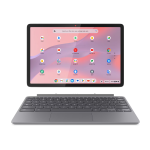
| 2-in-1 convertible | Hinge folds back 360°, works as both laptop and tablet | Students, content consumers, note-takers |
| Detachable / tablet with keyboard | Screen fully separates from keyboard | Tablet-first users who occasionally need a keyboard |
A regular laptop with a touchscreen gives you light touch capability, but the experience is limited by the fact that you’re still using it like a normal laptop most of the time. The 2-in-1 convertible is where touch really starts to make sense, because you can actually get it into a position that’s comfortable to use with your hands. Detachables like the Microsoft Surface Pro are essentially tablets with keyboard accessories, and they work best when you’re comfortable treating them primarily as a tablet.
The form factor you choose should match how you actually plan to use it – not how you imagine you might use it.
Pen Support
If there’s one thing that can genuinely justify a touchscreen purchase, it’s active pen support. And there’s an important distinction here between pen types.
Active Pens use technology built into the screen to detect a special stylus. They’re pressure-sensitive, precise, and often have tilt detection – basically like drawing or writing on paper. These are the pens worth getting excited about.
Passive (Capacitive) Pens are basically just a rubber tip on a stick. They work like your finger, but with a point. They’re cheap but pretty useless for anything requiring precision.
Who genuinely benefits from an active pen:
- Students who prefer handwritten notes – apps like OneNote and Notability make this feel like a real notebook
- Artists and designers who want to sketch and illustrate digitally without a separate drawing tablet
- Professionals who need to mark up documents, sign forms, or annotate PDFs on the go
Popular pen technologies you’ll come across:
- Wacom AES / EMR – Found on many Samsung, Lenovo, and ASUS laptops. Reliable and well-regarded.
- Microsoft Pen Protocol (MPP) – Used across the Surface range and many Windows laptops. Solid all-rounder.
- USI (Universal Stylus Initiative) – Common on Chromebooks and some Android devices.
- Apple Pencil – Only works with iPads, not relevant for laptops, but worth mentioning since people ask.
One important thing to check: the pen often isn’t included in the box. Some manufacturers bundle it, others sell it separately for anywhere from $50 to $150 (sometimes even more depending on the brand and model). Factor that into your budget if pen support is the reason you’re considering a touchscreen.
The Windows vs. macOS Factor
Your operating system plays a bigger role in the touchscreen experience than most people realise.
Windows has had touchscreen support for years, and it works reasonably well – but it’s inconsistent. Some apps are built with touch in mind and feel great. Others (especially older desktop apps) have tiny buttons and menus that are genuinely frustrating to tap with a finger. Microsoft has improved things significantly with Windows 10 and 11, especially in tablet mode, but it still doesn’t feel as polished as using an iPad. That said, for note-taking apps, web browsing, and media consumption, Windows touch is perfectly capable.
Apple simply doesn’t offer touchscreens on MacBooks, and they’ve been pretty clear about why: they believe reaching up to touch a vertical screen is ergonomically awkward for extended use (the “gorilla arm” problem mentioned earlier). Instead, they put touch-like gestures on the trackpad and added the Touch Bar on some older models. Whether you agree with Apple’s reasoning or not, if you’re a Mac user, touchscreen isn’t an option – so this whole debate doesn’t apply to you.
Chrome OS is actually a surprisingly good match for touchscreens. Chromebooks are simple, web-focused machines, and the interface translates well to touch. Many Chromebooks are also 2-in-1s with Android app support, which makes the touch experience feel much more natural. If you’re considering a Chromebook for a student or casual user, a touch model makes a lot of sense.
Battery Life – What Does Touch Actually Cost You?
The touch digitizer is always on, always listening for input. That constant low-level power draw adds up over the course of a day.
Real-world testing across various laptops consistently shows a 10 to 30 percent reduction in battery life on touch-enabled models compared to their non-touch equivalents. On a laptop rated for 10 hours, you might realistically see anywhere from 7 to 9 hours with the touch layer active.
The good news: On Windows laptops, you can actually disable the touchscreen entirely through Device Manager to claw back some of that battery life. It takes about 30 seconds and you can re-enable it any time. So if you’re on a long flight and need every drop of battery, it’s a handy option to know about.
To disable touch on Windows:
- Right-click the Start button and open Device Manager
- Expand Human Interface Devices
- Find HID-compliant touch screen, right-click it, and select Disable device
It’s not something most people will do regularly, but it’s good to know the option exists.
Who Should Buy a Touchscreen? (And Who Shouldn’t)
Let’s cut to the chase.
Go for touchscreen if you are:
- A student who wants to take handwritten notes with a stylus
- An artist or designer who wants to sketch directly on screen
- A presenter or sales professional who interacts with their screen during meetings
- Buying a 2-in-1 specifically for tablet use – in that case, touch is non-negotiable
- Someone who shares the laptop with kids or less tech-savvy family members
- A person who finds touchscreens more comfortable due to accessibility needs
Skip the touchscreen if you are:
- An office worker who mainly uses an external monitor at a desk – you’ll almost never touch the built-in screen
- A gamer – touch adds cost and zero gaming performance
- A writer, coder, or programmer – your keyboard is your tool, not your screen
- Budget-conscious – that $100–$200 is better spent on more RAM or storage
- Someone who is already annoyed by smudgy screens – touchscreens will genuinely bother you
- Anyone buying an external-monitor-first setup – if the laptop lid is mostly closed, touch is pointless
If You’re Still Not Sure
Can’t decide? Here’s some practical advice.
Go into a store and try it. JB Hi-Fi, Harvey Norman, OfficeWorks… all have display units you can actually touch. Spend 10 minutes using one. Scroll around, tap some things, try folding it if it’s a 2-in-1. You’ll know pretty quickly whether it feels natural and useful to you, or whether you’d just go back to the trackpad anyway.
Consider a 2-in-1 even if you’re on the fence. The flexibility of being able to fold the screen back or detach it is genuinely useful, even if you don’t use tablet mode every day. Having the option costs a bit more, but it means you’re not locked into one way of using the laptop.
Look for models where touch is optional. Some laptop lines give you the choice between touch and non-touch at the same spec level. That’s the ideal situation – you’re not being forced into a bundled upgrade you didn’t ask for.
My Final Verdict
Touchscreens are a “nice to have” for most people, and a genuine “must have” for a smaller group based on my sales experience.
If you’re a student who wants to handwrite notes, an artist, a presenter, or someone buying a 2-in-1 for real tablet use – go for it. The investment makes sense and you’ll use it regularly.
For everyone else, the honest truth is that most laptop users default back to their keyboard and trackpad within a few weeks of buying a touchscreen model. You end up paying more for a feature that collects fingerprints and quietly drains your battery in the background.
The key question to ask yourself is simple: Will I actually use this regularly? Not “could I see myself using it?” – because the answer to that is almost always yes. But will you actually use it, day in, day out?
If the answer is a confident yes, go for it. If it’s a “maybe” or “it seems cool,” save your money and put it towards better specs that you’ll benefit from every single day.