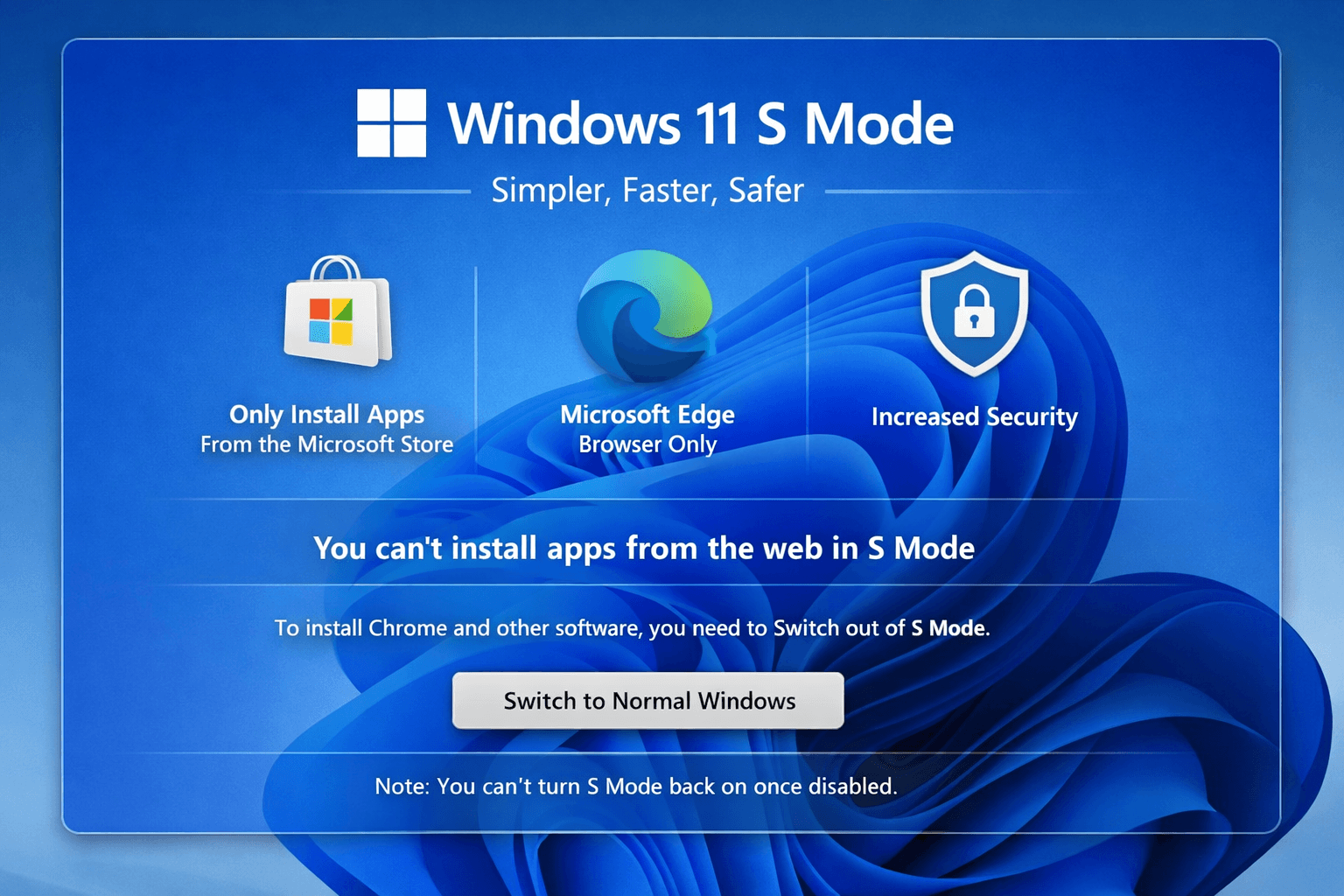
If you’ve just bought a budget or a student laptop and noticed it came with something called Windows 11 S Mode, you’re probably wondering what that means. Is it a lesser version of Windows? Is something missing? Should you be worried?
Don’t stress. Here’s everything you need to know, in plain English.
So What Actually Is S Mode?
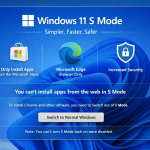
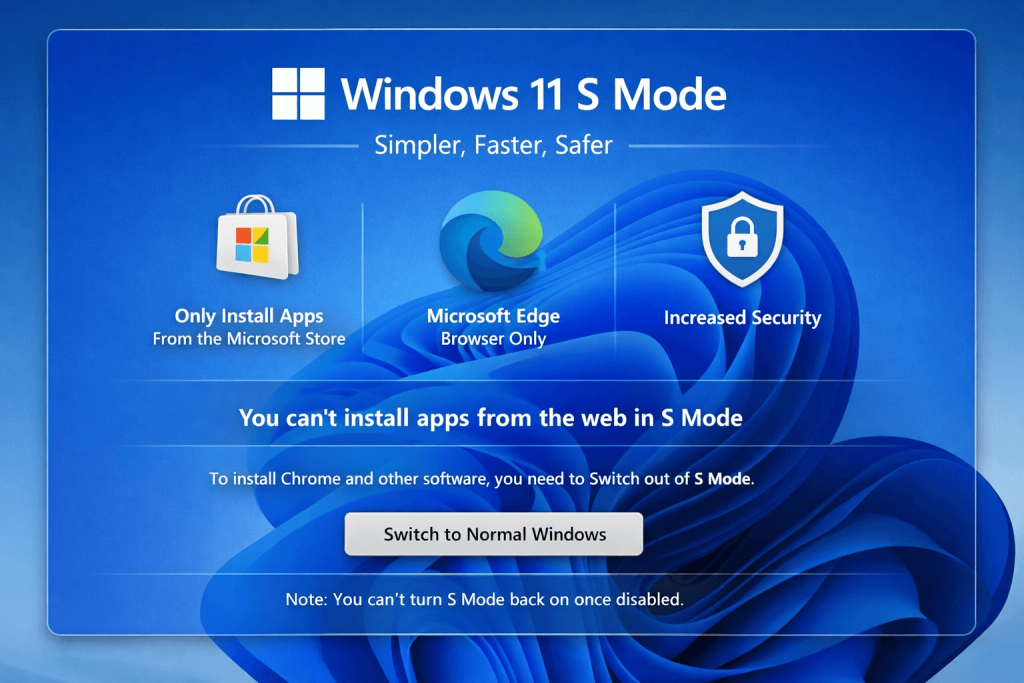
Windows 11 S Mode is a stripped-back version of Windows 11. It looks and feels like regular Windows 11, but Microsoft has locked it down in a couple of important ways.
The two big restrictions are:
- You can only install apps from the Microsoft Store. You can’t download and install software from the internet the way you normally would.
- Your default browser is locked to Microsoft Edge. You can’t switch to Chrome or Firefox as your default browser.
That’s basically it. Those two restrictions are the whole point of S Mode.
Why Does S Mode Even Exist?
Microsoft introduced S Mode with a few goals in mind:
- Better performance on low-end hardware. By limiting what can run on the laptop, the system stays snappier. Budget laptops with slower processors and less RAM benefit from this.
- Improved security. Because every app has to come from the Microsoft Store, it’s much harder for dodgy software or viruses to sneak onto your machine.
- Longer battery life. Fewer background processes running means less drain on the battery.
You’ll mainly find S Mode on entry-level and budget laptops. It’s Microsoft’s way of making a modest machine feel more responsive out of the box.
What’s the Catch?
The security and performance benefits come at a cost, and for most people, it’s a pretty big one.
The Microsoft Store has nowhere near the range of software you’d find on a regular Windows PC. Some popular apps and programs are simply not available there, including:
- Google Chrome (you’re stuck with Edge as your default browser)
- VLC Media Player
- Many popular games not sold through the Microsoft Store
- A huge range of work and creative software
For a student who needs to install specific software for school or university, or for anyone who uses a program that isn’t in the Microsoft Store, S Mode will quickly become frustrating.
How Do You Get Out of S Mode?
The good news is that switching out of S Mode is completely free and takes about two minutes. Here’s how:
- Click the Start button and open Settings
- Go to System, then scroll down to Activation
- Under the Switch to Windows 11 section, click Open Store
- In the Microsoft Store page that opens, click Get (it won’t cost you anything)
- Follow the prompts and you’re done
Once you switch out of S Mode, your laptop works like a completely normal Windows 11 machine. You can install any software you like, use any browser, and do whatever you need to do.
One important thing to know: switching out of S Mode is permanent. You cannot go back to S Mode once you’ve made the switch. For most people, that’s not a problem at all.
Should You Switch Out of S Mode?
For most people, the answer is yes, and here’s a simple way to think about it:
Stick with S Mode if:
- You only use your laptop for basic tasks like web browsing in Edge, watching videos, and writing documents in Microsoft Office or similar Microsoft Store apps
- You’re setting up a laptop for a young child and want an extra layer of security
- The laptop is used in a controlled environment like a school where IT manages everything
Switch out of S Mode if:
- You want to use Google Chrome or any other browser as your default
- You need to install software that isn’t available in the Microsoft Store
- You’re a student who needs specific apps for your course
- You just want a normal, unrestricted Windows experience
Honestly, for the vast majority of everyday users, switching out of S Mode straight away is the right move. The performance and security benefits are real, but the limitations outweigh them for most people.
Does S Mode Affect Performance After Switching?
This is a fair question. On a budget laptop with modest specs, you might notice things feel slightly slower after switching out of S Mode, especially if you start installing heavier software or multiple browser extensions.
That said, the difference in day-to-day use is usually minor for normal tasks. Just be mindful that if you’re on a lower-spec machine, installing lots of apps and running many things at once will slow things down regardless of whether S Mode is involved or not.
The Bottom Line
Windows 11 S Mode is not a defective or broken version of Windows. It’s a deliberate design choice by Microsoft to make budget laptops run more smoothly and securely, while locking users in Microsoft ecosystem.
But for most everyday Australians buying a new laptop, the restrictions are more hassle than they’re worth. Switching out of S Mode is free, takes a couple of minutes, and gives you a completely normal Windows 11 experience.
If your new laptop came with S Mode and you haven’t switched it off yet, now you know exactly what to do.